

Recommended Edits for Camtasia Online Videos
Learn some recommended edits and enhancements to complete in Camtasia Editor before exporting your final video.

Learn some recommended edits and enhancements to complete in Camtasia Editor before exporting your final video.
Send your Camtasia online project to Camtasia Editor to improve your video. Try these recommended edits to perfect your video before sharing with others.
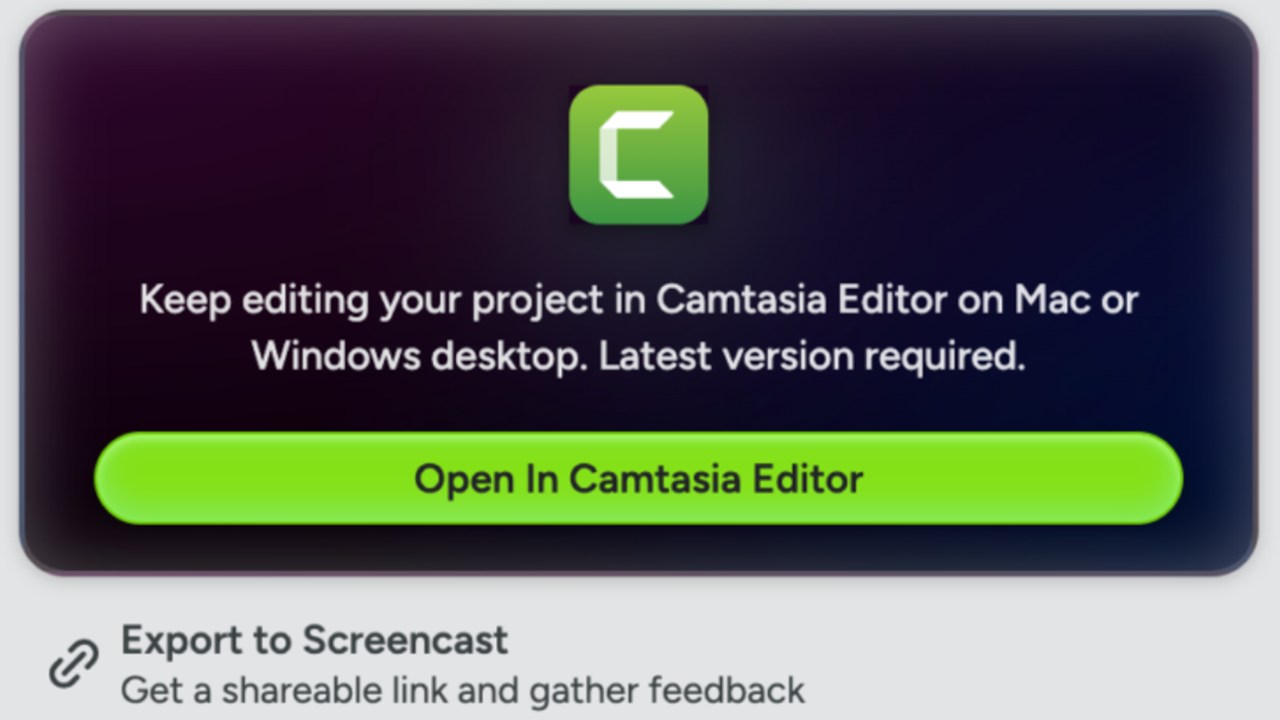
After recording your scenes, send the project to Camtasia Editor on the desktop to continue editing and export your final video. See Export & Share Videos from Camtasia Online.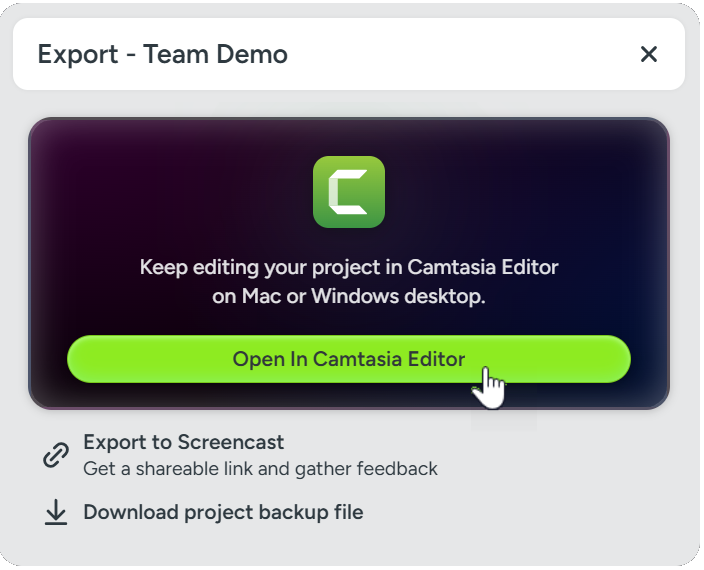
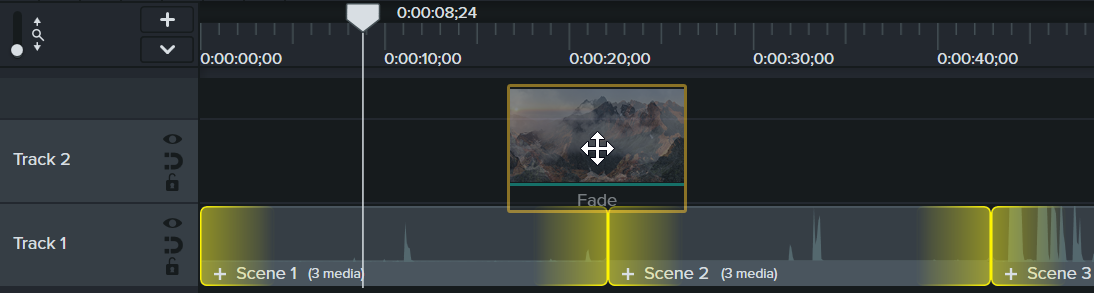
Transitions help you create a smooth visual transition between scenes. See Add a Transition.




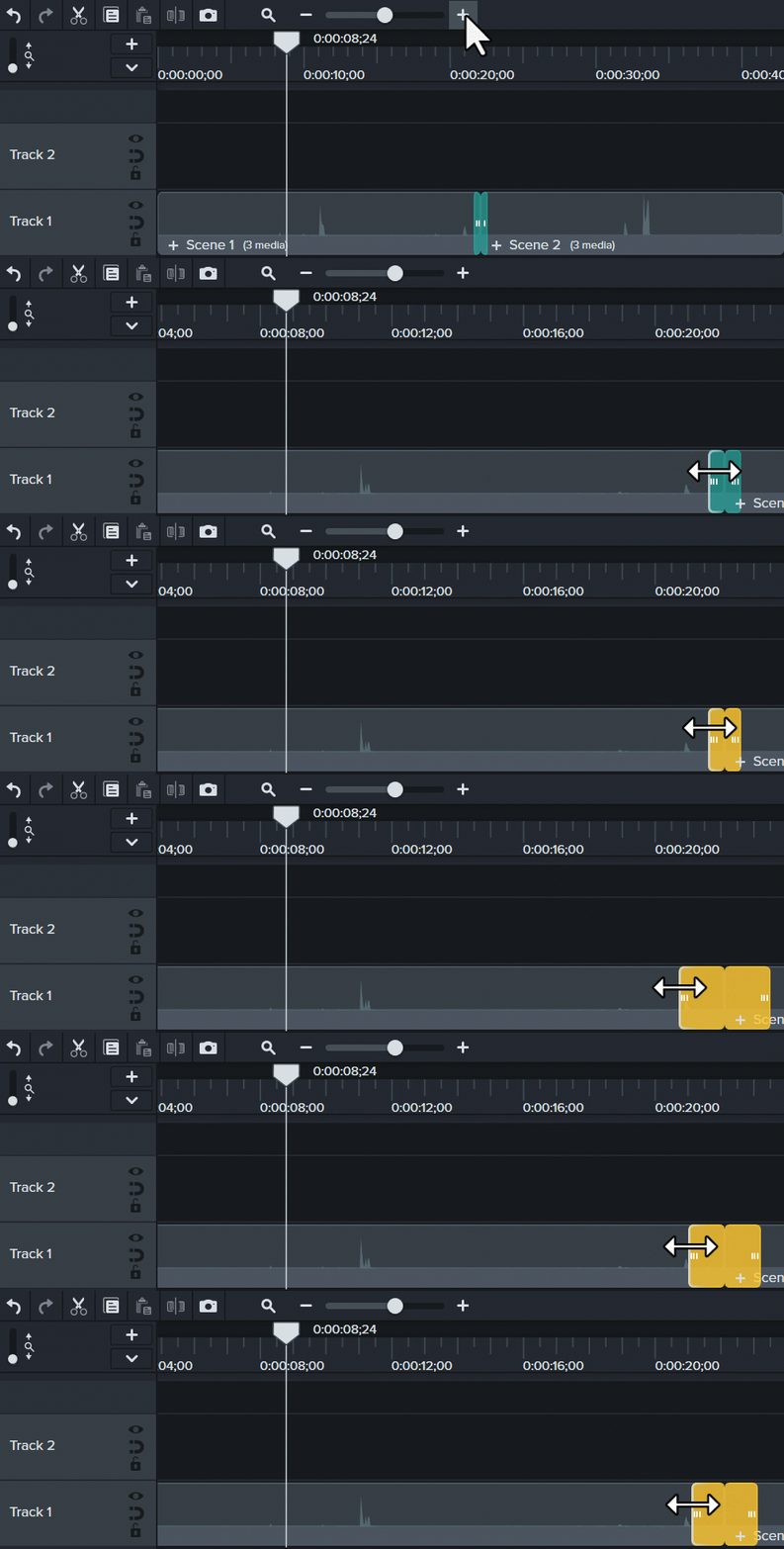
Remove mistakes or unwanted sections in your content.
 to remove the section.
You can further customize each scene by positioning the recorded screen and camera content to get the exact look you want.
For example, if the camera is covering up a portion of the screen content, you can change its position in Camtasia Editor.
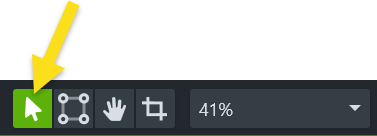
To learn more about editing the camera recording, see Record & Edit Camera Video (Picture-in-Picture).
Apply the AI Noise Removal audio effect to automatically remove background noise, such as fans and people talking in the background.
In Camtasia Editor, click the Audio Effects tab and drag the AI Noise Removal option onto a scene on the timeline that contains voice audio. 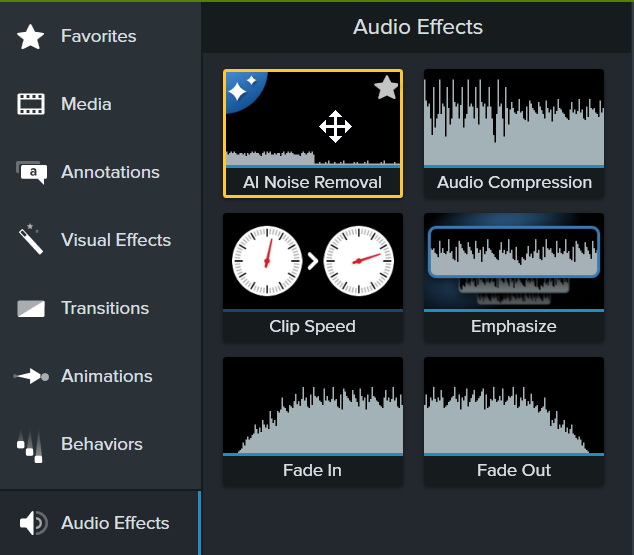
Annotations are visual elements and text to emphasize, direct viewers’ attention, provide additional information, or cover up areas in your video.
See Add Arrows, Shapes, or Callouts.
Add a title or lower-third from Camtasia assets to introduce your video, a speaker, or scene.
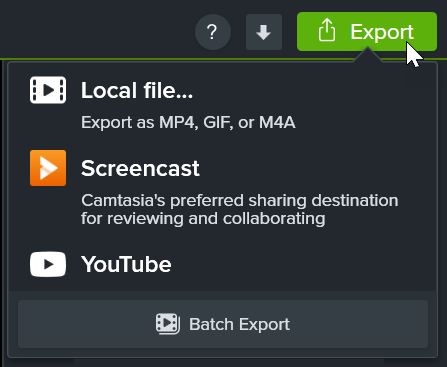
After editing, export a final video to share with your audience. You can export a video file onto your computer or upload directly to YouTube or Screencast. See Export & Share Your Video.